The StackRegent license and updates model in brief#
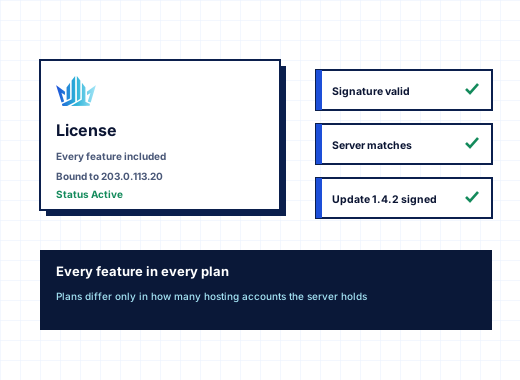
StackRegent is licensed per server. Each license key, in the form SR-XXXXX-XXXXX-XXXXX-XXXXX, runs one Windows Server installation. Every plan includes every feature; plans differ only in how many hosting accounts (subscriptions) the server may hold, and you can pay monthly or yearly. See pricing for the current plans, or start a free trial: 10 days, 3 accounts, no card.
Keys are bought and managed in the StackRegent store at panel.stackregent.com. The key is in the welcome email and on the license's service page in the client area. Keys bought earlier at system.coreinto.com keep working; the panel asks the license server that knows its key.
This page explains what happens after you have a key: how it is checked, what the panel does when a check fails, and how updates reach your server.
Entering the license key#
You can give the key in three places:
- During installation. The one-line installer takes it as a parameter. Run this in an elevated PowerShell on a fresh server:
[Net.ServicePointManager]::SecurityProtocol='Tls12'; & ([scriptblock]::Create((New-Object Net.WebClient).DownloadString('https://panel.stackregent.com/get/stackregent.ps1'))) -LicenseKey SR-XXXXX-XXXXX-XXXXX-XXXXX- In the panel. Open
https://SERVER:9443/, go to Tools & Settings › License Information, click Enter key or Change key, and Save and check. - On the command line.
stackregent license-set SR-..., or put the key in theSTACKREGENT_LICENSE_KEYenvironment variable and leave the argument out so it does not appear in command logs.
A new key is saved only when the license server accepts it. While the panel is licensed or in its grace period, a key that cannot be checked leaves the current key in place, so a typo never unlicenses a working server.
The full installation guide is at docs.stackregent.com/install.
Machine binding: one key, one server#
A license binds to the server it is first checked on. The panel identifies the machine by Windows' own machine ID (MachineGuid), but it never sends that ID: it sends a SHA-256 hash of it combined with the product code. The raw ID stays on the server.
After the first check, the license works only on that machine. Reinstalling StackRegent on the same Windows installation keeps the same ID, so a repair install needs no reissue; a freshly installed server has a new one.
The daily license check#
The panel checks its key with the license server once every 24 hours, at a random minute to spread the load on the license server, and whenever you click Check now. If the license server cannot be reached, the panel retries after an hour and then every six hours.
The answer is not a simple yes or no. The license server returns a signed token, and the panel verifies the signature against public keys built into the panel before it trusts anything in it. A forged answer from a fake server or a tampered file is rejected. The token is stored in %ProgramData%\StackRegent with access limited to SYSTEM and Administrators. The panel never follows redirects from the license server, so your key is never sent anywhere else.
License Information shows what the check returned:
| Field | Meaning |
|---|---|
| State | Licensed, Grace period or Restricted, with the license server's message |
| License key | The saved key |
| Registered to | The license holder |
| Edition | The plan name; trial licenses carry a Trial badge |
| Subscriptions | Subscriptions in use and the license's limit |
| Domains | Domains in use |
| Valid until / Works until | When the current check expires, or when the grace period ends |
| Next payment due | The next due date of the service in the store |
| Last successful check, Last problem | When the license server last answered, and the last error |
Third parties, such as a customer buying hosting from you, can confirm a server is licensed on the license verification page.
Grace period for outages#
Networks fail, and a license server outage should not become your outage. If the panel cannot reach the license server, it keeps working until the date shown under Valid until, and then for a grace period. During that time everything works as usual and each administrator page shows a license banner with the date the panel keeps working until. Restore outbound HTTPS, click Check now, and the banner goes away. The panel also retries by itself.
The grace period covers failures to reach the server. A clear refusal, for example a suspended or expired license, has no grace period: the panel becomes restricted at once. So does a server clock set back more than an hour from the last time the panel ran, which stops an old answer from being kept alive by changing the date; Tools & Settings › System Time puts the clock right.
Restricted mode keeps hosted sites running#
When no key has been accepted, the license server refused the key, or the grace period ran out, the panel enters restricted mode:
- administrators can open only the License Information page,
- no new customers, resellers, subscriptions or domains can be created,
- updates cannot be installed.
What does not stop: websites, mail, DNS, databases and the customer and reseller panels keep working as before. Your customers can still log in, change their sites, read their mail and manage their databases. A billing problem on your license never becomes a hosting outage for them. Enter a valid key or put the license right in the client area, then click Check now.
This license state is not the same as Restricted Mode Settings under server settings, which limit what restricted administrator accounts may change.
Moving a license to another server#
Because the license is bound to a machine, moving to new hardware is a three-step job.
Step 1: Reissue the license in the client area#
Log in at panel.stackregent.com, open the license's service page and reissue it. This clears the machine binding.
Step 2: Enter the same key on the new server#
Install StackRegent on the new server with the one-line installer and the same key, or enter the key under Tools & Settings › License Information if the panel is already installed.
Step 3: Check the license#
Click Check now on License Information, or run stackregent license-check. The check binds the license to the new machine and the state changes to Licensed.
Do steps 2 and 3 soon after the reissue: the first server to check after a reissue gets the binding, so an old server left running could take it back at its next daily check.
The client area allows a limited number of reissues per license; if you need more, open a ticket. Trial licenses cannot be reissued by the client, and each machine and IP address can use one trial. To move the hosted accounts themselves, use the Migration & Transfer Manager or a password-protected backup.
Signed updates from the license server#
Updates are free while the server is licensed and come from the same license server that checks the key. Tools & Settings › Updates shows:
| Field | Meaning |
|---|---|
| Installed | The installed version and build |
| Newest release | The newest release your license allows, marked "signature verified", with its notes |
| Comes from | The license server and the release key ID |
| Last check | When releases were last checked, and any error |
Click Check now, which runs as a task you can follow in Task Manager, then Install and the version number. The installer restarts the panel services; websites keep running, though you may need to log in to the panel again.
Every release is signed with the StackRegent release key, whose private half is kept offline. The public key (ID 4kybuaOI7rGnp0qC) is built into the panel. Before installing, the panel checks the package's size, its SHA-256 hash and the signature, and installs it only if all three match and the version is newer than the one installed. A package that fails any check is not installed. The one-line installer makes the same checks before it installs anything. Server components such as PHP, MariaDB or MailEnable are checked separately, with a checksum or Microsoft's signature, when you install them from Server Components.
Update channel and automatic updates#
Tools & Settings › Update Settings controls how updates arrive:
| Setting | Effect |
|---|---|
| Automatic updates | Install new releases at night, after the daily check |
| Notification | Email when a new release is available |
| Email address | Where that email goes; empty uses the main administrator's address |
| Releases | Include beta releases to switch from the stable channel to the beta channel |
Most production servers should stay on the stable channel with notification on and install updates in a quiet hour; a test server on the beta channel shows you what is coming. What changed in each version is listed in the release notes, and updating covers manual upgrades with install.ps1.
Troubleshooting license and update problems#
- A license banner shows on every page: read its message, make sure the server can reach the license server over HTTPS, and click Check now.
- The panel says the license could not be checked: check outbound HTTPS, DNS and the system clock.
- License refused after moving servers: reissue the license in the client area, then Check now.
- No update is offered: click Check now on the Updates page; the license decides which releases are offered.
- An update cannot be installed: the panel may be restricted; fix the license first.
- Locked out of the panel:
stackregent license-checkon the server prints the license state without a browser.
For more, see the knowledge base or contact support.
Frequently asked questions
How many servers can I use one StackRegent license on?
One. Each key is bound to the Windows machine it is first checked on. For more servers, buy one license per server; plans differ only in the number of hosting accounts each server may hold.
What happens to my websites if my StackRegent license expires?
They keep running. In restricted mode, websites, mail, DNS, databases and the customer and reseller panels work as before; administrators can only open the License Information page, and new accounts and updates are blocked until the license is fixed.
Does StackRegent need an internet connection?
The panel checks its license once a day over HTTPS. If the license server cannot be reached, it keeps working until the current check expires and then for a grace period, with a banner showing the date.
How do I move my StackRegent license to a new server?
Reissue the license in the client area at panel.stackregent.com, then enter the same key on the new server. The next check binds it to the new machine. Trial licenses cannot be reissued by the client.
Are StackRegent updates free?
Yes, updates are included while the server is licensed. They come from the license server, and each package is verified against the StackRegent release key before it is installed.
How do I know an update has not been tampered with?
Every release is signed with the StackRegent release key. The panel checks the package size, SHA-256 hash and signature against the public key built into it, and refuses any package that does not match.
Can I get beta releases of StackRegent?
Yes. Tick Include beta releases under Tools & Settings › Update Settings. The server is then offered beta releases as well as stable ones; leave it off on production servers.