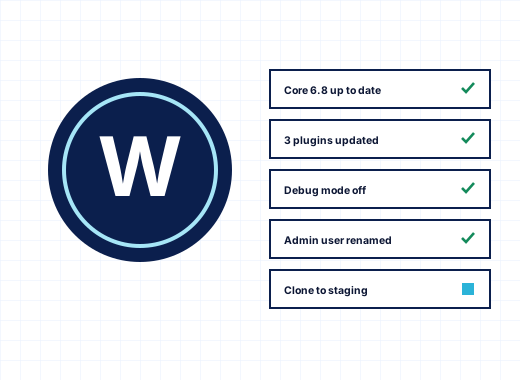
A WordPress toolkit for Windows hosting, not a Linux add-on#
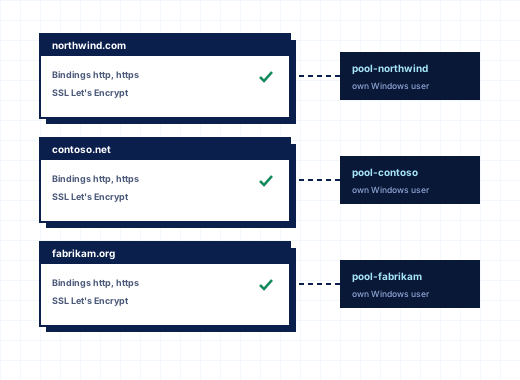
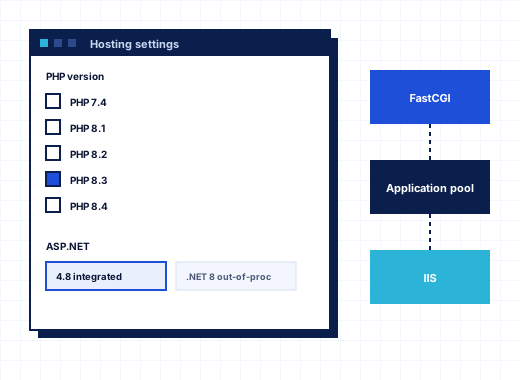
Most WordPress management tools were written for Linux and Apache. On Windows Server the details are different: IIS URL Rewrite instead of .htaccess, web.config instead of Apache rules, NTFS permissions instead of chmod, and PHP running through FastCGI under each account's own Windows user. The StackRegent WordPress Toolkit is built around those details. It drives WordPress through WP-CLI, writes its protection rules into web.config, and runs every command as the subscription's system user, so files it creates belong to the right account and stay inside its webspace.
Administrators open WordPress under Hosting Services and see every installation on the server. Resellers and customers see the installations of their own subscriptions under WordPress in their menu or on the WordPress tile of a website. The toolkit is controlled by the plan permission WordPress Toolkit, which is on by default.
The toolkit needs two server components: WP-CLI (under Developer tools in Server Components) and IIS URL Rewrite, without which WordPress cannot use pretty permalinks. The page tells you if either is missing and links to the place to add it.
Installing WordPress on IIS#
Click Install WordPress and fill in one dialog:
- Choose the Website and, if you like, a Folder. Leave it empty to install at the root; the folder must be empty apart from the default page.
- Enter the Website title and choose the Language.
- Enter the administrator User name, a Password of at least 10 characters and an Email. The dialog suggests avoiding
admin. - Choose Automatic updates: Security and minor releases (recommended), All releases, including major ones or Off, and whether plugins and themes update automatically.
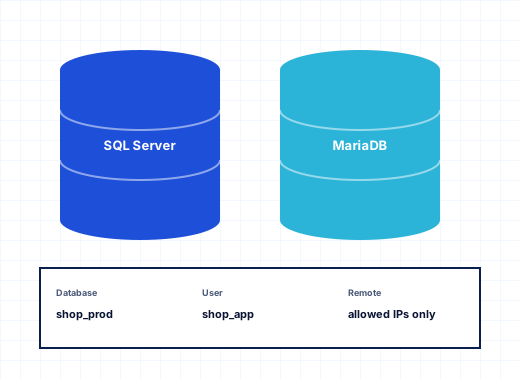
The panel creates a MariaDB database and user for the installation, installs WordPress as the subscription's user and applies the recommended security measures from the start. The installation appears as a card with its address, WordPress version, pending updates and security status.
Sites uploaded by hand or brought over from another host are not left out. Scan looks through the webspaces and adds any WordPress installation it finds to the toolkit, so migrated sites get the same updates and hardening as new ones.
Updates with restore points#
WordPress breakages almost always start with an update. The toolkit treats every update from the panel as a change that may need undoing:
- The Overview tab of an installation lists available updates for core, plugins and themes, with Update everything for all of them at once.
- Before any update runs, the panel saves a restore point of the files and the database. If a plugin update breaks the site, open Backups and click Restore.
- Automatic updates can be set per installation. The panel checks every installation every night at 04:20 server time and applies the updates the settings allow.
The Plugins and Themes tabs list what is installed with version, status and an auto-update switch. You can activate, update or remove items, or use Add plugin and Add theme to search the WordPress.org directory and Install or Install and activate from the panel.
The Overview tab also has the switches people otherwise go hunting for in wp-config.php: Maintenance mode, Search engine indexing and Debugging, plus Change password for any administrator account. Log in to WordPress opens the dashboard as the site's administrator without typing a password.
WordPress security hardening on Windows#
The Security tab checks eight measures and applies each with one click, or all of them with Apply all. Each one can be reverted if a plugin needs it:
| Measure | What it does |
|---|---|
| Block access to wp-config.php | Visitors get 404 for the file that holds the database password |
| Block xmlrpc.php | Stops password guessing and pingback abuse through XML-RPC; Jetpack and some apps need it |
| Forbid PHP in wp-content/uploads | A script uploaded through a vulnerable plugin cannot run |
| Turn off the plugin and theme editor | Sets DISALLOW_FILE_EDIT, so a stolen password cannot change code from the dashboard |
| Turn off pingbacks | New posts neither send nor accept pingbacks |
| Debugging off | Keeps WP_DEBUG from showing errors and paths to visitors |
| No user called admin | Attackers try that user name first |
| Database table prefix is not wp_ | Defeats automated SQL injection that assumes wp_ |
Replace security keys rotates the salts in wp-config.php, which logs out every session, useful after a suspected compromise.
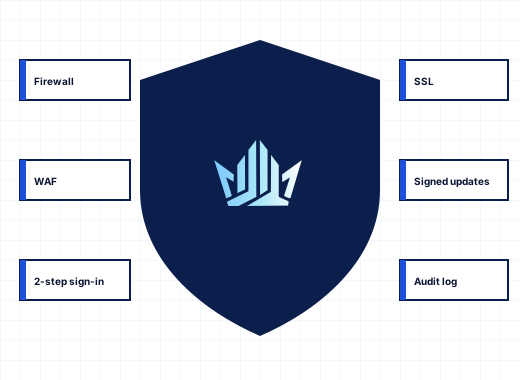
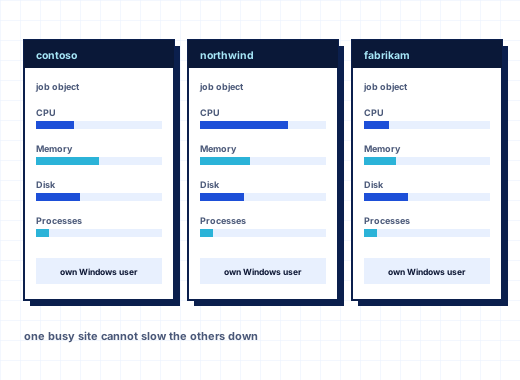
These measures sit on top of what the server already does. Each subscription runs in its own IIS application pool under its own Windows user, so a hacked plugin on one site cannot read another customer's files. The server's PHP versions ship with process-starting functions such as exec and shell_exec disabled, which stops most uploaded web shells; WP-CLI started from the panel is not affected. The ModSecurity web application firewall with the OWASP Core Rule Set can filter requests before they reach PHP. See resource limits and isolation and security for the details.
Staging copies and site copies#
The Staging and copies tab handles the two jobs that otherwise mean an afternoon with FTP and phpMyAdmin.
Create staging copy clones the site, files and database, to a folder or a subdomain such as staging.example.com in the same subscription. Staging copies are hidden from search engines and carry a Staging badge. Test a theme change or a major WordPress release there, then use Copy to live. You choose whether to copy Files (themes, plugins, uploads), the Database (posts, pages, settings, users) or both. The live site's wp-config.php and web.config stay as they are, and a restore point of the live site is saved first.
Copy to another place makes an independent copy on another website or folder, for example to move a site to its final domain. The copy gets its own database, and its addresses are rewritten for the new location.
Managing WordPress across all sites on the server#
For a hosting provider, the value is in the server-wide view. The administrator's WordPress page lists every installation on the server with a summary at the top: how many installations there are, how many need a WordPress update, and how many plugin and theme updates are waiting. Filter by title or address to find a site, open it, and work with the same tabs the customer sees.
Each card shows the subscription the site belongs to, so you can jump to the account when a site needs more than a WordPress fix. When the panel is busy with an installation, the card says so, and errors are shown on the card rather than hidden in a log.
Remove offers two choices: Remove WordPress, which deletes the files and the database, or Detach from the toolkit, which keeps the site running and simply stops managing it. Scan finds a detached site again.
WordPress backups#
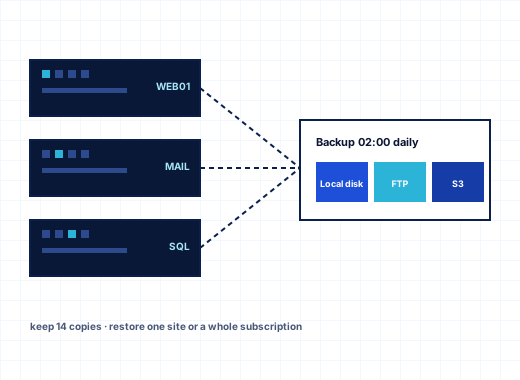
The Backups tab of an installation has Back up files and database, Restore and remove. These backups go to the subscription's private folder /private/app-backups and count toward its disk space; the newest ten are kept. They are separate from the Backup Manager, which backs up the whole subscription with mail and other databases, on a schedule and to remote storage.
One-click Joomla, Drupal, phpBB and DNN#
Not every customer runs WordPress. Open a website and click Applications to install:
- Joomla and Drupal, with Update from the panel,
- phpBB for forums,
- DNN (DotNetNuke) for .NET shops. DNN switches the website to ASP.NET 4 and uses a SQL Server database; setup takes several minutes.
You enter the folder, title and administrator user name, password and email. Installed on this website lists each application with its version and the date it was last checked, with Back up, a version check and remove. Unlike WordPress, these applications have no login from the panel, so keep the administrator password safe.
For developers, the same website tools include Git deployment, PHP Composer, a Laravel toolkit and Node.js through iisnode. See all StackRegent features, or start a free trial with three hosting accounts and no card.
Frequently asked questions
Does WordPress run well on Windows Server and IIS?
Yes. WordPress needs PHP, MariaDB or MySQL and URL rewriting. StackRegent installs PHP through FastCGI, MariaDB and IIS URL Rewrite as server components, and the toolkit warns you if URL Rewrite or WP-CLI is missing before you install.
Is there a WordPress toolkit like Plesk's for Windows hosting without Plesk?
StackRegent includes a WordPress toolkit in every plan. It installs WordPress, updates core, plugins and themes behind restore points, applies security measures, makes staging copies and lists every installation on the server.
Can I roll back a WordPress update that broke a site?
Yes, if the update was run from the panel. A restore point of the files and database is saved before every update, and the Backups tab of the installation restores it in one click.
Can the toolkit manage WordPress sites I migrated from another host?
Yes. Click Scan and the panel adds WordPress installations it finds in the webspaces, so they get updates, security measures and staging like sites installed from the panel.
Which applications besides WordPress can I install in one click?
Joomla, Drupal, phpBB and DNN. DNN uses ASP.NET 4 and a SQL Server database; the others use PHP and MariaDB.
Can customers use the WordPress toolkit themselves?
Yes, when their hosting plan includes the WordPress Toolkit permission, which is on by default. Customers see only the installations of their own subscriptions, and panel users with the Application User role can manage WordPress without other access.